Board Views, Custom Dashboards, Two-Factor Authentication, and Project Importers
Projects now come with three views – Kanban, List, and Table. Plus: custom widget dashboards, TOTP-based two-factor authentication, and imports from Asana, Trello, Monday, ClickUp, and CSV.
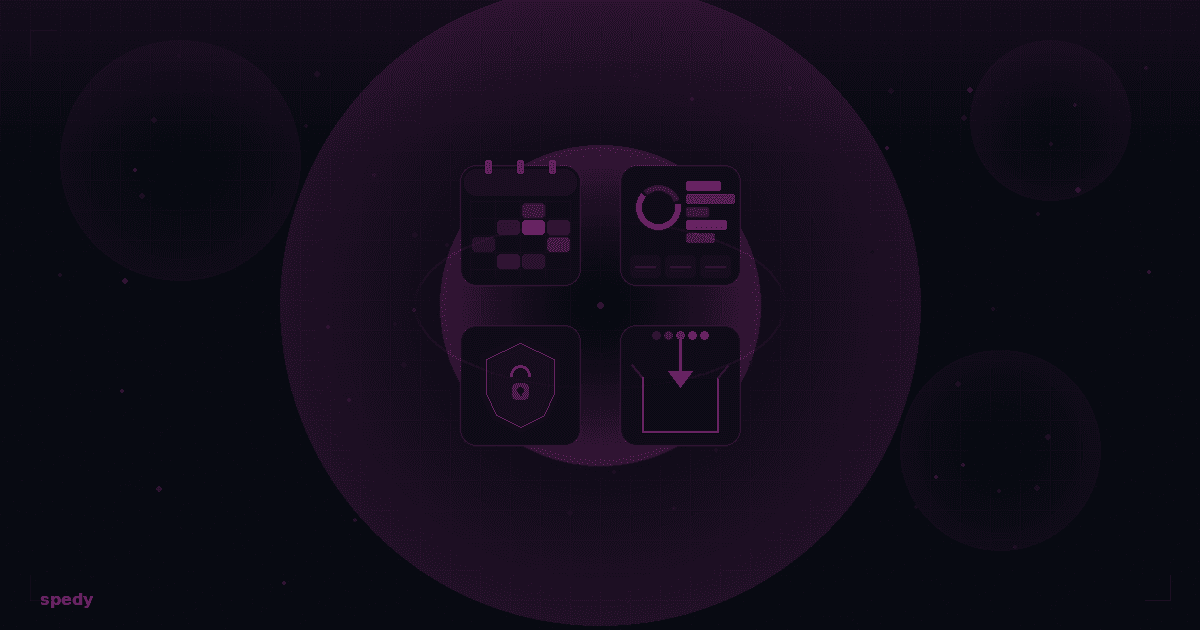
Four major additions in this update: projects can now be viewed in three different layouts, you can build custom dashboards with widgets and charts, accounts can be secured with TOTP-based two-factor authentication, and existing projects can be imported from Asana, Trello, Monday, ClickUp, or CSV.
Three Views Per Project
Until now, a project was always a Kanban board. Now there are three views you can switch between at the top of the project:
| View | What you see |
|---|---|
| Kanban | Classic columns by status – same as before |
| List | Compact list of all tickets |
| Table | Tabular layout with sortable columns |
Spedy saves your view choice per project. All views use the same filters and open the ticket side panel on click.
Custom Dashboards with Widgets
In addition to the intelligent default dashboard, you can now create custom dashboards. Find them in the sidebar under Dashboards.
What you can do
- Create dashboards: Click New Dashboard, enter a name, and add widgets
- Configure widgets: Each widget has its own title, can be filtered to a specific project or all projects, and shows a configurable time range (7–90 days)
- Multiple dashboards: Up to 25 dashboards with up to 30 widgets each. Mark one as default so it loads first
Available Widget Types
| Category | Widgets |
|---|---|
| Statistics | Total tickets, open tickets, recently done, my open, overdue |
| Charts | Tickets by status, by priority, by type, created trend, completed trend |
| Lists | My open tickets |
Charts render as donut, bar, or line charts depending on the widget type.
Two-Factor Authentication (TOTP)
Spedy now supports TOTP-based two-factor authentication – compatible with Google Authenticator, 1Password, Authy, and any other TOTP app.
For users: Setting up 2FA
- Go to Account → Security
- Click Set Up Two-Factor Authentication
- Scan the QR code with your authenticator app (or enter the key manually)
- Confirm with a 6-digit code from the app
- Save your 10 backup codes securely – they are shown only once
From now on, Spedy will ask for a TOTP code or backup code in addition to your password at login.
Backup Codes
Each backup code is single-use. Under Account → Security, you can see how many codes you have left. You can regenerate codes at any time – you'll need a current TOTP or backup code to do so.
For admins: Enforcing 2FA
Under Settings → Organization, there's a toggle to Require 2FA for all members. When enabled:
- Members without 2FA are automatically redirected to the setup page on their next login
- They cannot continue working until 2FA is active
- The requirement applies to admins and team members equally
Import Projects: Asana, Trello, Monday, ClickUp, CSV
In addition to the existing Jira and YouTrack importers, Spedy now also supports imports from Asana, Trello, Monday.com, ClickUp, and via CSV file.
How importing works
- Go to Settings → Integrations → Imports
- Choose the source (Asana, Trello, Monday, ClickUp, or CSV)
- Enter your credentials or upload a CSV file
- Spedy auto-suggests status and user mappings
- Adjust the mappings if needed and start the import
CSV Import
The CSV import auto-detects common column names – e.g., "Title", "Status", "Assignee", "Priority". Supported delimiters include comma, semicolon, tab, and pipe. If headers aren't recognized, you can set the column mapping manually.
Import History
Under Settings → Integrations → Imports, you can see the history of all past imports with status, progress, and a detailed log.
Improved Onboarding
The onboarding experience has been expanded: admins can restart the setup wizard at any time, and any user can replay the product tour – both under Account → Getting Started.
New on the dashboard: a getting-started checklist with three core steps (create a project, create a ticket, invite a team member). The checklist derives its state from actual data, marks completed steps automatically, and disappears once all are done. You can dismiss it anytime and bring it back from Account → Getting Started.
Empty areas in Spedy now show explanatory text describing what the area is for and what to do first.
More Improvements
- Projects overview: New toggle between list and tile view – your choice is persisted
- Todos: Tab counters show the number of open todos per tab. New
Tkeyboard shortcut for quick entry. Custom time picker for reminders. Email notifications for delegation and reminders - Time tracking: Entry forms can now be submitted with
Ctrl+Enter
Frequently asked questions
Quick answers to the most common questions about this topic.
What views are available in projects now?
What are custom dashboards?
How do I set up two-factor authentication?
Can admins enforce 2FA?
Which sources does the project importer support?
Keep reading
SPSX Import, New MCP Tools, and Bitbucket Update
Import Spedy Selection Packages directly into new tickets, use new MCP tools for subtickets and ticket links, get started faster with streamlined onboarding, and connect Bitbucket with Atlassian API tokens.

New design, My tickets and contracts per project
Spedy looks calmer: a new dashboard, a new ticket view, My tickets and profile pictures. Plus capacity contracts with points per project.

Capacity contracts: clients buy points, not hours
Clients buy a quarterly point allowance, and every request gets a size class before work starts. The price is fixed before anyone picks up the ticket.