Timeline View, Keyboard Shortcuts, and Coding Tools
Plan visually with the Gantt timeline, navigate faster with keyboard shortcuts, and open tickets directly in Claude Code, Cursor, Devin or your favourite tool.
Note (2026-09-03): The AI chat and its consent dialog described here have since been removed from Spedy. Background in AI chat removed: bring your own AI tool. Timeline, shortcuts and coding tools are all still there.
Three bigger additions at a glance: an interactive timeline for visual planning, a platform-wide shortcut system for faster navigation, and a coding tools menu that opens tickets directly in your preferred AI assistant.
Timeline: Gantt Planning Inside Spedy
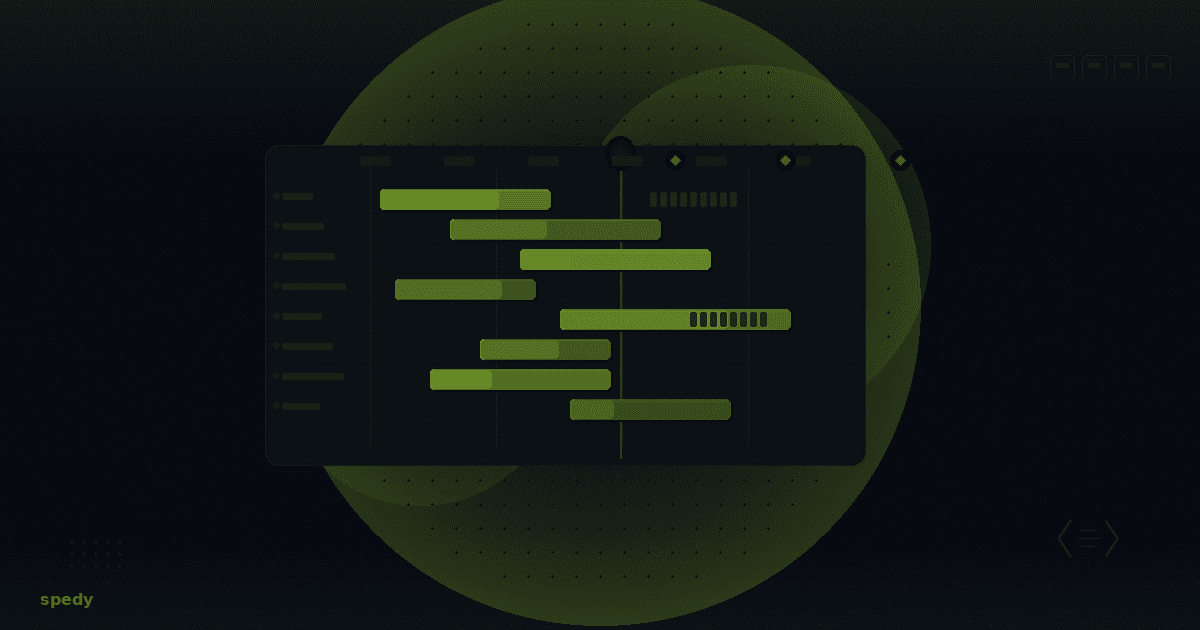
The new Timeline shows all scheduled tickets as horizontal bars on a time axis, grouped by epic or board, with a today line and milestone markers.
What you can do
- Get the big picture: See at a glance how tasks spread over weeks and months. Zoom between day, week, and month.
- Schedule unplanned tickets: Tickets without a due date appear in a strip above the chart. Drag them onto the timeline. Spedy sets start and due date automatically (default duration: 3 days).
- Adjust dates: Drag the left edge of a bar to change the start date, the right edge for the due date. Dragging the centre shifts the entire range.
- Filter: Narrow the view to specific boards, statuses, or assignees.
- Live updates: Changes from teammates appear in real time. Toggle live updates off when you want to plan undisturbed.
Grouping
Choose between By Epic (default) and By Board at the top. Tickets without an epic or board land in their own group.
Open the Timeline from the Timeline entry in the sidebar. The feature must be enabled in org settings and you need the timeline:view permission.
Keyboard Shortcuts
Spedy now has a platform-wide shortcut system. Instead of reaching for the mouse, handle the most common actions from the keyboard.
Global shortcuts
| Keys | Action |
|---|---|
| ? | Open shortcut help |
| / | Focus search |
| ⌘/Ctrl + K | Open search palette |
| ⌘/Ctrl + / | Toggle AI panel |
| [ | Toggle sidebar |
| C | Create new ticket |
Navigation (G + key)
Press G, then the target key within one second:
| Sequence | Target |
|---|---|
| G → D | Dashboard |
| G → I | Issues Hub |
| G → P | Projects |
| G → W | Wiki |
| G → K | Knowledge Hub |
| G → N | Notifications |
| G → S | Settings |
Inside a ticket
| Key | Action |
|---|---|
| E | Edit description |
| M | Write comment |
| A | Change assignee |
| S | Change status |
| P | Change priority |
All shortcuts are suppressed while you type in a text field. A subtle toast on your first visit points you to the ? key.
Coding Tools: Open Tickets in Your Editor
Every ticket now has a Coding Tools menu in the header. It passes the ticket context as a prompt to the tool of your choice. No more manual copying.
How it works
- Go to Account → Coding Tools and enable the tools you use.
- Open a ticket. The header shows a split button: the primary action on the left (default: Copy as prompt), the dropdown with all enabled tools on the right.
- Click a tool and Spedy opens it with the ticket context. The last-used tool automatically moves into the primary position.
Supported tools
Web-based: Claude Code, Codex, Devin, Lovable, Replit, v0, Netlify Agents. Desktop: Cursor, Windsurf, Zed, GitHub Copilot, Codex Desktop, Conductor, Factory, Warp. CLI: OpenCode. Plus a freely configurable Custom tool with its own URL template.
Customise the prompt template
Under Account → Coding Tools you can edit the prompt template. Available variables: {{identifier}} (ticket ID), {{title}}, {{context}} (full ticket context as markdown), {{branchName}} (suggested branch name). The default prompt includes an MCP hint so the tool can query and update Spedy directly via MCP.
AI Chat: Data Processing Consent
Before the AI chat can be used, an admin must grant AI data processing consent once. When the chat is opened for the first time, a dialog explains which data is sent to Grok (xAI).
- Admins can grant or revoke consent at any time (via Settings → Features or directly in the dialog).
- Non-admins see a notice asking them to contact an admin.
- If consent is revoked, AI chat features are immediately disabled for all members.
Bulk Actions: Assign Type and Epic
The bulk action toolbar in the Backlog and the Issues Hub now supports two additional actions:
- Change type: assign a ticket type (Bug, Feature, etc.) to all selected tickets at once.
- Assign / remove epic: attach selected tickets to an epic or remove the association.
The actions appear in the same toolbar as status, assignee, and delete. Existing limits (max 500 tickets, confirmation above 50) still apply.
Frequently asked questions
Quick answers to the most common questions about this topic.
Where do I find the Timeline?
timeline:view permission.Can I move tickets directly on the Timeline?
How do I open the shortcut overview?
Which coding tools are supported?
How do I adjust the prompt template for my coding tool?
{{identifier}}, {{title}}, {{context}} and {{branchName}} are available; the default prompt includes an MCP hint so your tool can query and update Spedy directly.Keep reading

Agents get their own identity, tokens and ticket claims
Agents are now users of their own: tightly scoped tokens, exclusive ticket claims, one structured report back – and a person still signs off.

Making agent work visible: overview, delivery trace and webhooks
Agents claim tickets and report back. What's new is that you can see what comes of it – per agent, per ticket, and as a signal to your own systems.

Runners, live previews and agent skills removed: Spedy is the layer your agents work in
We no longer run agents. What's gone (runners, previews, skills), what stays (MCP, handoff, budgets, approvals) and what you need to do: nothing.